
Passkeys and MFA for Small Teams: What to Choose and How to Roll It Out
A practical guide to multi-factor authentication for small businesses: SMS codes vs authenticator apps vs passkeys and security keys, which accounts to protect first, how to avoid lockouts with recovery codes and backup methods, and a phased rollout plan for a small team.
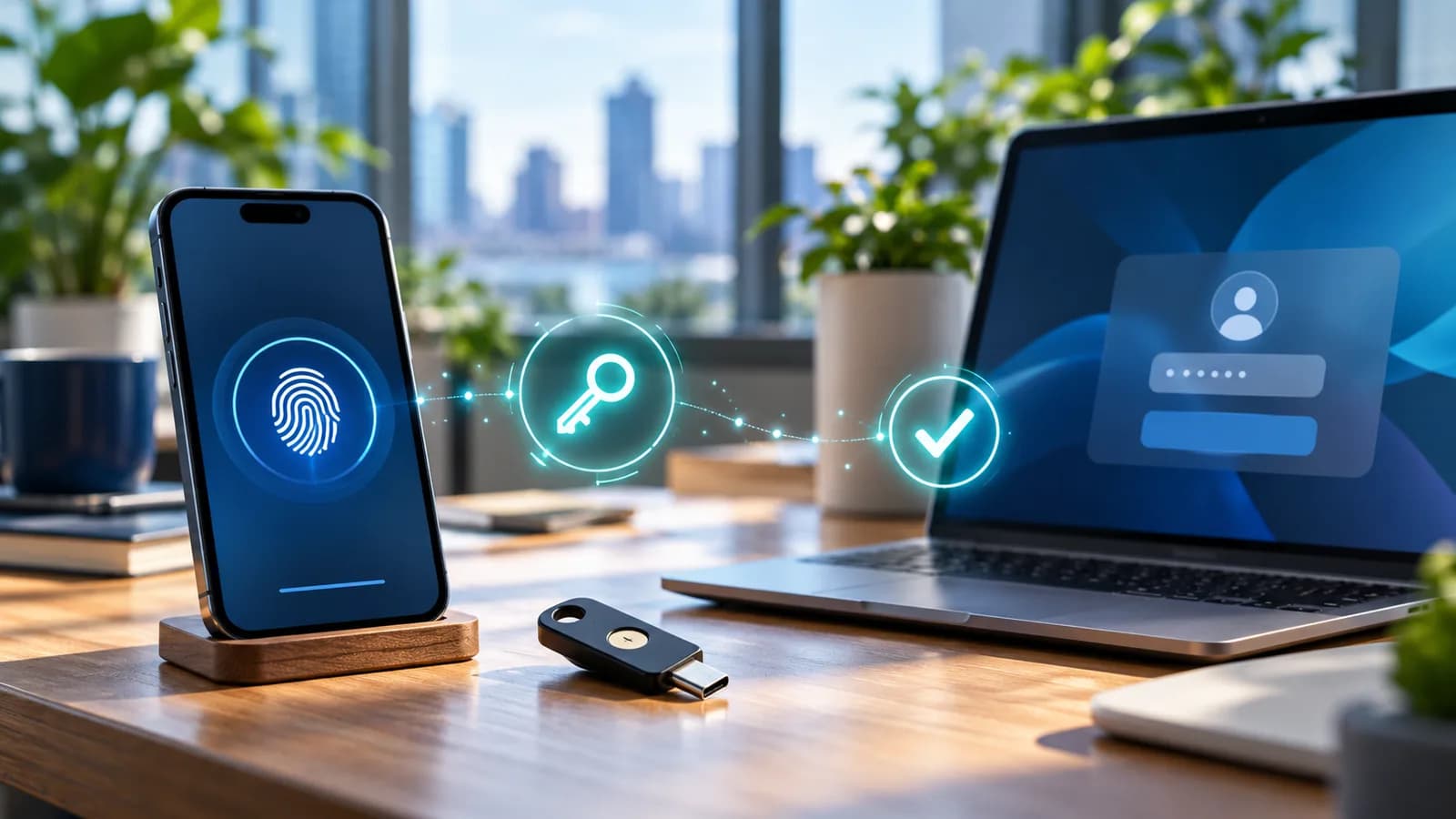
For a small business, the best multi-factor authentication is a passkey or hardware security key wherever a service supports it, an authenticator app where it does not, and SMS codes only as a last resort. Start with the accounts that can unlock everything else: email, your domain registrar, hosting, payment and banking, and your password manager. Give every person at least two sign-in methods and stored recovery codes before you enforce anything, so a lost phone does not become a lockout.
That order reflects current guidance from the UK's NCSC, which announced in April 2026 that it will recommend passkeys wherever a service supports them and two-step verification where it does not, and from CISA, whose phishing-resistant MFA fact sheet calls phishing-resistant MFA the most secure form and SMS or voice codes a last-resort option. This guide explains the options in plain terms, then gives a rollout plan a 5 to 50 person team can follow.
Why MFA matters, and why not all MFA is equal
Most account takeovers start with a stolen or reused password. MFA means a password alone is no longer enough to sign in. CISA's More than a Password campaign makes the basic case: any MFA is far better than none.
But MFA methods differ in one important way: whether they can be phished. With SMS codes, email codes, authenticator-app codes and simple push approvals, the person still types or approves something, and a convincing fake sign-in page can relay that to the real service in real time. The NCSC describes all of these traditional methods as inherently phishable. SMS has extra weaknesses: codes depend on the phone network, and a criminal who persuades a mobile carrier to move your number to a new SIM can receive them.
Passkeys and security keys work differently. The browser and the authenticator cryptographically bind each sign-in to the genuine website's domain, so a credential created for your real email provider simply will not work on a look-alike phishing site. That is what "phishing-resistant" means.
NIST's digital identity guidelines reflect the same ranking. NIST SP 800-63B-4, the final Revision 4 published in 2025, classes the use of the phone network for one-time codes as a "restricted" authenticator, prohibits email for out-of-band authentication, and requires services operating at its AAL2 level to offer at least one phishing-resistant option. Those rules are written for US federal systems, but they are a useful benchmark for anyone choosing methods.
Your options compared
| Method | How it works | Phishing-resistant? | Main weaknesses | Best use |
|---|---|---|---|---|
| SMS or voice code | A one-time code sent to your phone number. | No | Can be relayed by fake sites; SIM-swap and number porting; no signal abroad. | Last resort when nothing else is offered. |
| Authenticator app (TOTP) | An app generates a six-digit code that changes every 30 seconds from a shared secret. | No | Codes can be relayed by fake sites; losing the phone without a backup locks you out. | Default for services without passkey or security key support. |
| Push approval | The service sends a prompt to an app; you approve it. | No | Users can be tricked or worn down into approving; number matching helps. | Acceptable where it is the provider's main option, with number matching on. |
| Synced passkey | A FIDO credential stored in a password manager or platform account (Apple, Google, Microsoft and others) and synced across your devices; unlocked with your face, fingerprint or device PIN. | Yes | Security depends on the account that syncs it; that account must itself be well protected. | Most staff accounts where supported. |
| Device-bound passkey / security key | A FIDO credential that never leaves one device, typically a USB or NFC hardware key. | Yes | Costs money; can be lost, so each person needs a spare. | Admin, finance and registrar accounts. |
Getting the terminology right
The FIDO Alliance defines a passkey as a sign-in credential based on FIDO standards, stored on a phone, computer or hardware security key and unlocked the same way you unlock the device. Passkeys use the standards commonly known as FIDO2, which consists of WebAuthn (the W3C web API browsers expose to websites) and CTAP (the protocol a browser or operating system uses to talk to an external authenticator such as a security key or phone). FIDO distinguishes synced passkeys, which a cloud service copies between a user's devices, from device-bound passkeys, which never leave a single device; credentials on hardware security keys are device-bound.
NIST SP 800-63B-4 accepts syncable authenticators at AAL2 but not at its highest level, AAL3, because their keys can be copied. For a small business, that translates to a simple rule: synced passkeys are a large improvement for everyday accounts, and hardware security keys are worth the small cost for the handful of accounts that control everything else.
Which accounts to protect first
Prioritise by blast radius: if this account is taken over, what else falls with it?
- 1Email. Your mailbox is where password resets go. Whoever controls it can reset almost everything else and impersonate you to customers and suppliers. Protect every user, starting with admins, directors and finance.
- 2Domain registrar. Control of your domain means control of your website, your email routing and your DNS. A hijacked domain can redirect your email and website to a criminal.
- 3Hosting and DNS provider. Access here means access to your website files, databases and often backups.
- 4Payments and banking. Online banking, payment processors, Stripe, PayPal, Shopify or WooCommerce payment settings, payroll and accounting software.
- 5Password manager. It holds the keys to everything; its master account deserves the strongest method you have.
- 6Website admin accounts. WordPress, Shopify, WooCommerce and CMS administrator accounts, plus any developer or agency accounts.
- 7Cloud storage, CRM and social media accounts, and any service that holds customer personal data.
Also look for shared accounts, such as a single "admin@" login several people use. Where the service allows it, give each person their own account; where it does not, store the credential in a shared password manager vault and register a passkey or authenticator there so the second factor is not tied to one employee's phone.
API keys and integration tokens are a separate problem MFA does not cover; our guide to MCP security, tokens and permissions explains how to scope and audit them.
Recovery codes and lockout prevention
The biggest practical risk in an MFA rollout is not attackers; it is locking yourself out of your own domain registrar or bank. Plan recovery before you enforce anything.
- Register at least two methods per account. For example, a passkey on a phone plus a hardware security key, or a passkey plus an authenticator app.
- Two security keys per person for accounts that use them: one carried day to day, one stored somewhere safe.
- Save recovery codes the moment you see them. Most services show one-time backup codes when you enable MFA. Store them in your password manager and keep a printed copy in a locked drawer or safe for the most critical accounts (email admin, registrar, bank, password manager).
- At least two administrators for your email tenant, registrar and hosting account, each with their own MFA, so one person can recover the other.
- Remove weak recovery paths. An account protected by a passkey but recoverable by SMS or a personal email address is only as strong as that recovery path. Review recovery emails and phone numbers and keep them current, and use company-controlled addresses.
- Write down the offboarding steps. When someone leaves, remove their passkeys, security keys and authenticator registrations, and revoke their sessions, as well as disabling the account.
- Protect the account that syncs passkeys. If passkeys sync through an Apple, Google, Microsoft or password manager account, that account must have strong MFA and its own recovery set up.
A phased rollout plan for a small team
A rollout that annoys people or causes a lockout in week one tends to stall. Spreading it over a few weeks works better.
Phase 1: Prepare (week 1)
- List every business account and service, who uses it, and which MFA methods it supports. Note which support passkeys or security keys.
- Choose and deploy a business password manager if you do not already use one; it simplifies passkeys, authenticator codes and recovery codes in one place.
- Decide your standard: passkeys where supported, authenticator app otherwise, SMS only where there is no alternative.
- Buy hardware security keys for admins and finance (two each).
- Write a one-page staff guide with screenshots for your main email platform.
Phase 2: Admins and critical accounts (week 2)
- Enrol the owner, admins and finance staff first on email, registrar, hosting, banking, payments and the password manager.
- Register two methods each and store recovery codes.
- Confirm a second administrator can sign in to each critical account.
- Remove any unused admin accounts and old app passwords.
Phase 3: Everyone, on email first (weeks 3 to 4)
- Enable MFA for all staff on email. Google Workspace and Microsoft 365 both let administrators require two-step verification for users and allow passkeys or security keys; check your plan's admin documentation for the current settings.
- Give staff a short enrolment window before enforcement, and run a 20-minute session where everyone sets up together.
- Where your provider offers it, block legacy sign-in methods that bypass MFA.
- Turn on number matching for any push-based method.
Phase 4: Remaining services (weeks 4 to 6)
- Work down the account list: website admin, CRM, cloud storage, accounting, social media, e-commerce platforms.
- For WordPress, enforce MFA for administrator and editor accounts through a well-maintained plugin or your security tooling.
- Replace SMS with an authenticator app or passkey wherever a service now supports it.
Phase 5: Maintain (ongoing)
- Add MFA to the joiner and leaver checklists.
- Review admin accounts and registered methods each quarter.
- Re-check services every few months; passkey support is expanding quickly.
- Test a recovery once a year: can a second admin restore access to your registrar or email tenant using the recovery codes and process you documented?
Checklist
- [ ] Account inventory with MFA options recorded for each service.
- [ ] Business password manager in place, master account on the strongest method.
- [ ] Email, registrar, hosting, banking, payments and password manager protected first.
- [ ] Passkeys or security keys for admins and finance; two keys each.
- [ ] Every user has at least two methods registered.
- [ ] Recovery codes stored in the password manager and printed for critical accounts.
- [ ] Two administrators on every critical account.
- [ ] SMS and personal-email recovery removed where stronger options exist.
- [ ] Legacy sign-in protocols blocked; number matching on for push.
- [ ] MFA steps in onboarding and offboarding checklists.
Related: invoice fraud and business email compromise, a small-business incident response plan.
MFA on your website's admin, hosting and registrar accounts is part of the same job as keeping software patched and backups tested, which our website maintenance plan guide covers. If you want help auditing who has access to your website, hosting and domain, enforcing MFA on WordPress or Shopify admin accounts, or cleaning up shared logins, see our website maintenance service or contact us.
Related posts

Shared vs VPS vs Managed Hosting for a Small Business Website or Store
A plain comparison of shared hosting, VPS and managed hosting or PaaS for small business sites and online stores: responsibilities, isolation and performance, the signs a WooCommerce store or Next.js app has outgrown shared hosting, GDPR data residency, and a decision table.
Read article →

How to Secure a New Ubuntu VPS: A Setup Checklist for Business Websites
A step-by-step hardening checklist for a fresh Ubuntu 26.04 or 24.04 LTS VPS that will host a business website, with copy-paste commands for SSH keys, ufw, unattended-upgrades, fail2ban, time sync, swap, monitoring and backups.
Read article →

Deploy a Next.js 16 App on a VPS with Nginx, systemd or PM2, and HTTPS
A working guide to running Next.js 16 on your own VPS: Node.js LTS, build-time versus runtime environment variables, a systemd unit and PM2 alternative, an Nginx server block with certbot HTTPS, the standalone output option, logs, and a two-port release script.
Read article →
Author
Anushka Dahanayake
Anushka Dahanayake builds SEO-focused websites, e-commerce platforms, dashboards, and automation systems for businesses worldwide.