
Business Email Compromise and Invoice Fraud: How Small Businesses Stop It
A defensive guide to business email compromise and invoice fraud for small businesses: how the scams work at a high level, the red flags, the payment and email controls that stop them, and what to do in the first hours after a fraudulent transfer in the US, UK and EU.
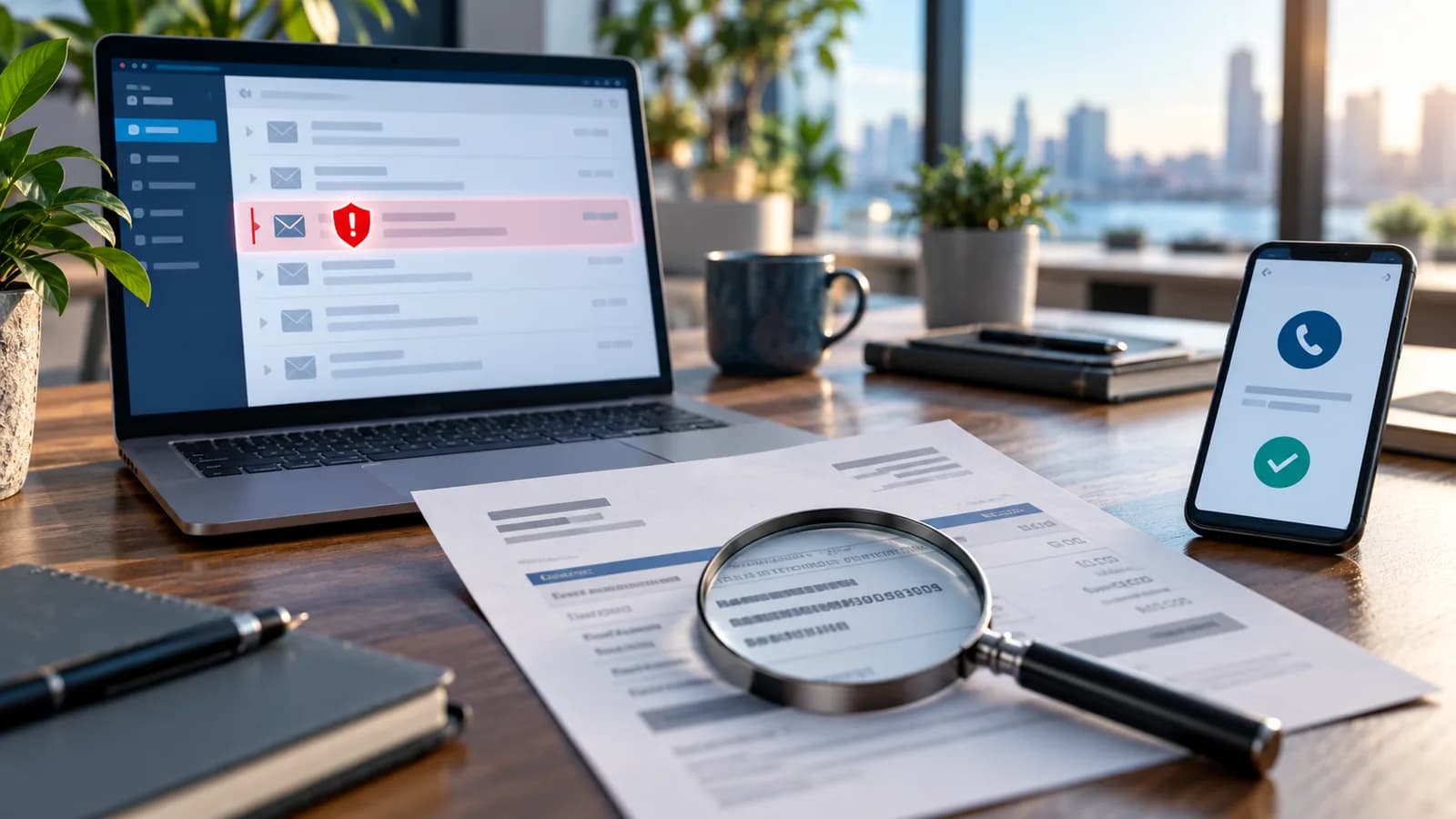
Business email compromise (BEC) is fraud in which a criminal uses email, either from a hijacked mailbox or from an address made to look like a trusted one, to persuade someone in your business to pay money into the wrong bank account. The most effective defences are procedural, not technical: never accept a change of bank details without calling the supplier back on a number you already hold, and require two people to approve payments. Email authentication (SPF, DKIM and DMARC) and multi-factor authentication on mailboxes then make the scams harder to start.
This guide explains how the fraud works at a level that helps you spot it, lists the warning signs, sets out the controls in priority order, and gives a first-hours plan for when a payment has already gone out. It is written for owners, finance staff and the developers or IT providers who look after a small business's email and domain.
What BEC and payment-diversion fraud look like
The FBI's Internet Crime Complaint Center describes BEC as one of the most financially damaging online crimes it tracks; its 2024 public service announcement reports more than $55 billion in exposed losses from incidents reported between October 2013 and December 2023. In the UK the same crime is often called payment diversion fraud or mandate fraud, and the NCSC describes it as a form of phishing aimed at people who can move money or release sensitive information.
The scams follow a few recurring patterns:
- Supplier invoice diversion. A message that appears to come from a real supplier says their bank account has changed and asks you to pay the next invoice, or an overdue one, to new details.
- Executive impersonation. A message that appears to come from the owner or a director asks a finance colleague to make an urgent, confidential payment, often while the "director" is supposedly travelling or in a meeting.
- Customer-side diversion. Your own customers receive an email that looks like it came from you, with your invoice attached but your bank details altered. This damages your reputation as well as theirs.
- Payroll diversion. A message that appears to come from an employee asks HR to change the account their salary is paid into.
What makes BEC effective is that it rarely needs malware. Either the criminal has gained access to a genuine mailbox (yours or a supplier's), usually through a stolen password, and can read real conversations and reply in the same thread, or they send from a look-alike domain or a spoofed address that is close enough to pass a quick glance. Because a compromised supplier mailbox sends genuine email, technical filters on your side cannot always catch it. That is why payment procedures matter more than any single tool.
Warning signs to train everyone on
Anyone who can pay an invoice, change a supplier record or update payroll should know these red flags. None proves fraud on its own; each is a reason to stop and verify.
- A request to change bank details, especially combined with "please use the new account for the outstanding invoice".
- Urgency, secrecy or pressure: "needs to go today", "don't mention this to anyone yet", "I'm in a meeting, just get it done".
- A sender address that differs slightly from the usual one: an extra letter, a different top-level domain, a hyphen, or a free webmail address claiming to be a company.
- A reply-to address that differs from the from address.
- A change in tone, signature, formatting or language from someone you deal with regularly.
- A new account in a different country or in a personal name rather than the company's name.
- An invoice PDF that looks right but has different payment details from previous invoices.
- Requests that arrive around holidays, month-end or when the usual approver is away.
- Unexpected mailbox rules in your own email that forward, hide or delete messages, which can indicate a compromised account.
The payment controls that stop it
These controls cost nothing and are what actually prevent the loss. They should be written down, agreed by the owner, and followed even when the request appears to come from the owner.
1. Out-of-band verification of every bank-detail change. When a supplier, employee or anyone else asks to change where money is sent, verify by phone using a number from your own records, a signed contract or the supplier's official website, never a number in the email or on the new invoice. The IC3 advice is to use secondary channels to verify requests for changes in account information, and the NCSC recommends verifying important email requests by another method. Record who you called, when, and who confirmed the change.
2. Dual approval for payments and supplier changes. One person sets up or edits a payee, a different person approves it. Apply the same rule to any payment above a threshold you choose, and to all first payments to a new payee. Most business banking platforms support separate "create" and "authorise" roles; switch them on.
3. A cooling-off rule for new bank details. Agree that a changed account is not used until it has been verified and, where practical, until a small test payment has been confirmed received by the supplier through a known contact. Do not let "urgent" override this.
4. A no-exceptions policy for executive requests. Make it explicit that finance staff will never be criticised for delaying a payment to verify it, even if the request seems to come from the owner. Criminals rely on staff being afraid to question a senior person.
5. Tell your customers how you will and will not contact them. Put a line on invoices and in onboarding emails stating that you will never change your bank details by email, and that customers should call a known number before paying to new details. This protects your customers from criminals impersonating you.
6. Use payee-name checks where available. In the UK, Confirmation of Payee checks the account name against the account number for many payments; in the EU, the Verification of Payee requirement under the Instant Payments Regulation provides a similar check for euro credit transfers. A mismatch warning is a strong reason to stop.
Email controls: MFA, SPF, DKIM and DMARC
Payment procedures stop the loss. Email controls reduce how often the attempt gets started.
MFA on every mailbox
Most real-mailbox compromises start with a stolen password. Turn on multi-factor authentication for every user in Microsoft 365, Google Workspace or whichever provider you use, starting with finance staff, directors and admin accounts. Phishing-resistant options such as passkeys or security keys are stronger than SMS codes. Enrol at least two methods per person so a lost phone does not lock anyone out. Also disable legacy sign-in protocols that bypass MFA if your provider still allows them, and periodically review mailbox forwarding rules.
What SPF, DKIM and DMARC each do
These three DNS records protect your own domain from being used to send spoofed email. They do not stop a criminal using a look-alike domain or a compromised supplier mailbox, but they make direct spoofing of your domain far less effective, and they help your genuine email reach inboxes.
| Record | What it does | What it does not do |
|---|---|---|
| SPF (Sender Policy Framework) | A TXT record listing the servers and services allowed to send email for your domain. Receiving servers check the sending server against it. | It checks the hidden envelope sender, not the visible From address, and breaks when mail is forwarded. |
| DKIM (DomainKeys Identified Mail) | Your mail provider signs each message with a private key; the public key is published in DNS so receivers can confirm the message was sent by an authorised system and not altered. | On its own it does not tell receivers what to do with unsigned or failing mail. |
| DMARC | Ties SPF and DKIM to the visible From domain (alignment), tells receivers what to do with mail that fails (none, quarantine or reject), and sends you reports on who is sending as your domain. | It cannot protect a different, look-alike domain. |
Gmail now requires SPF or DKIM from all senders, and SPF, DKIM and DMARC from bulk senders, according to Google's email sender guidelines. If you send newsletters or automated emails from your website, each of those services must be included in your SPF record and set up with DKIM for your domain; our email automation setup guide covers connecting those tools.
A sensible DMARC rollout
The NCSC's email security and anti-spoofing guidance recommends a staged approach:
- 1Inventory every service that sends as your domain. Your mailbox provider, website contact forms, e-commerce platform, newsletter tool, CRM, helpdesk, invoicing and accounting software, and any scanners or printers that send email.
- 2Publish SPF and enable DKIM for each of them. SPF has a limit of 10 DNS lookups, so a long list of
include:mechanisms can break it; consolidate where you can. - 3Publish DMARC at `p=none` with reporting. This monitors without affecting delivery.
- 4Read the aggregate reports (a DMARC reporting service makes them readable) and fix any legitimate sender that fails.
- 5Move to `p=quarantine` once all known legitimate sources pass. The NCSC notes many organisations move on from
noneafter about six to eight weeks. - 6Move to `p=reject` once quarantine is stable. The NCSC says a reject policy on all your domains is the best way to prevent spoofing, and that many organisations reach it about three months after quarantine. Keep monitoring reports after every change.
Example records for a domain using Google Workspace (replace the domain, the include values for your own providers and the reporting address):
`
example.com. TXT "v=spf1 include:_spf.google.com ~all"
_dmarc.example.com. TXT "v=DMARC1; p=none; rua=mailto:[email protected]"
`
DKIM records are generated by each sending service (Google Workspace, Microsoft 365, your newsletter tool) and published at a selector such as selector._domainkey.example.com; copy them exactly from the provider's admin console. Domains you own but never send email from should publish v=spf1 -all and a DMARC policy of p=reject so they cannot be spoofed either.
Look-alike domains and supplier compromise
DMARC cannot stop a criminal registering a domain one character away from yours or your supplier's. Practical defences:
- Configure your email system to tag messages from external senders, so a "director" email arriving from outside is visibly marked.
- Consider registering the most obvious misspellings and alternative top-level domains of your main domain, and point them nowhere or redirect them.
- Keep supplier contact details and bank details in your accounting system, not in email threads, so staff compare against a trusted record.
- When a supplier tells you their email was compromised, treat every payment request from them in the surrounding weeks as high risk and verify by phone.
The first hours after a fraudulent transfer
Speed matters more than anything else. The IC3 advice is blunt: if you discover a fraudulent transfer, time is of the essence.
Within the first hour
- 1Call your bank's fraud line immediately, using the number on your card, statement or the bank's official website. Give the amount, date, time, receiving account details and transaction reference, and ask the bank to attempt a recall and to contact the receiving bank. Ask for a case reference.
- 2Tell the person who was impersonated (the real supplier, director or employee) through a known contact, so they can check their own systems and warn others.
- 3Do not delete the fraudulent emails. Keep them, including full headers, as evidence. Screenshot the payment confirmation.
Within the same day
- 1Report to the authorities.
- United States: file a complaint with the FBI at ic3.gov as soon as possible. The IC3 notes it may be able to help banks and law enforcement freeze funds.
- United Kingdom (England, Wales and Northern Ireland): report to Report Fraud, the City of London Police service that replaced Action Fraud in December 2025, online or on 0300 123 2040. In Scotland, contact Police Scotland on 101.
- European Union: report to your national police; Europol maintains a list of national cybercrime reporting links. Your national CSIRT or cyber security agency may also accept incident reports, and businesses in sectors covered by NIS2 may have separate reporting duties.
- 1Secure the mailbox. If there is any sign your own account was involved, reset the password, sign out all sessions, check MFA methods and recovery details, remove unknown forwarding or inbox rules, and review sign-in logs. If you use an IT provider, bring them in now.
- 2Pause related payments. Hold any other pending payments to the affected supplier or any recently changed payee until verified.
In the following days
- 1Assess data exposure. If a mailbox was compromised, personal data in it may have been accessed, which can trigger breach-notification duties under GDPR, UK GDPR or US state laws. Under GDPR and UK GDPR, a notifiable breach must be reported to the supervisory authority within 72 hours of becoming aware of it, so start this assessment early.
- 2Tell your insurer if you have cyber or crime cover; many policies require prompt notification.
- 3Review what failed and fix the process, not just the person.
*This is general information, not legal advice. Reporting duties and the chances of recovering funds depend on your jurisdiction, bank and circumstances.*
A one-page anti-fraud checklist
- [ ] Written rule: bank-detail changes are verified by phone on a number from our own records.
- [ ] Dual approval enabled in online banking for new payees and payments above our threshold.
- [ ] Cooling-off period and test payment for changed bank details.
- [ ] Staff told in writing they will never be penalised for delaying a payment to verify it.
- [ ] Invoices state that our bank details never change by email.
- [ ] MFA enabled on every mailbox, starting with finance and admin accounts.
- [ ] Legacy email sign-in protocols disabled where the provider allows.
- [ ] SPF and DKIM configured for every service that sends as our domain.
- [ ] DMARC published and on a path from none to quarantine to reject.
- [ ] Non-sending domains publish
v=spf1 -alland DMARCp=reject. - [ ] External-sender tagging switched on.
- [ ] Bank fraud line, IC3 / Report Fraud / national police links saved where finance staff can find them.
Related: rolling out passkeys and MFA, a small-business incident response plan.
These controls sit alongside the basics of keeping your website, plugins and hosting patched, which our website maintenance plan guide covers. If you would like help auditing your domain's DNS, setting up SPF, DKIM and DMARC for your website and email tools, or reviewing which systems send email as your business, see our website maintenance service or contact us.
Related posts

Shared vs VPS vs Managed Hosting for a Small Business Website or Store
A plain comparison of shared hosting, VPS and managed hosting or PaaS for small business sites and online stores: responsibilities, isolation and performance, the signs a WooCommerce store or Next.js app has outgrown shared hosting, GDPR data residency, and a decision table.
Read article →

How to Secure a New Ubuntu VPS: A Setup Checklist for Business Websites
A step-by-step hardening checklist for a fresh Ubuntu 26.04 or 24.04 LTS VPS that will host a business website, with copy-paste commands for SSH keys, ufw, unattended-upgrades, fail2ban, time sync, swap, monitoring and backups.
Read article →
Deploy a Next.js 16 App on a VPS with Nginx, systemd or PM2, and HTTPS
A working guide to running Next.js 16 on your own VPS: Node.js LTS, build-time versus runtime environment variables, a systemd unit and PM2 alternative, an Nginx server block with certbot HTTPS, the standalone output option, logs, and a two-port release script.
Read article →
Author
Anushka Dahanayake
Anushka Dahanayake builds SEO-focused websites, e-commerce platforms, dashboards, and automation systems for businesses worldwide.