
Automating Lead Intake: Linking Elementor Forms and Contact Form 7 to Zoho and HubSpot CRMs
Stop copy-pasting leads manually. Learn how to map WordPress form submissions directly to Zoho and HubSpot CRM APIs using custom PHP hooks.
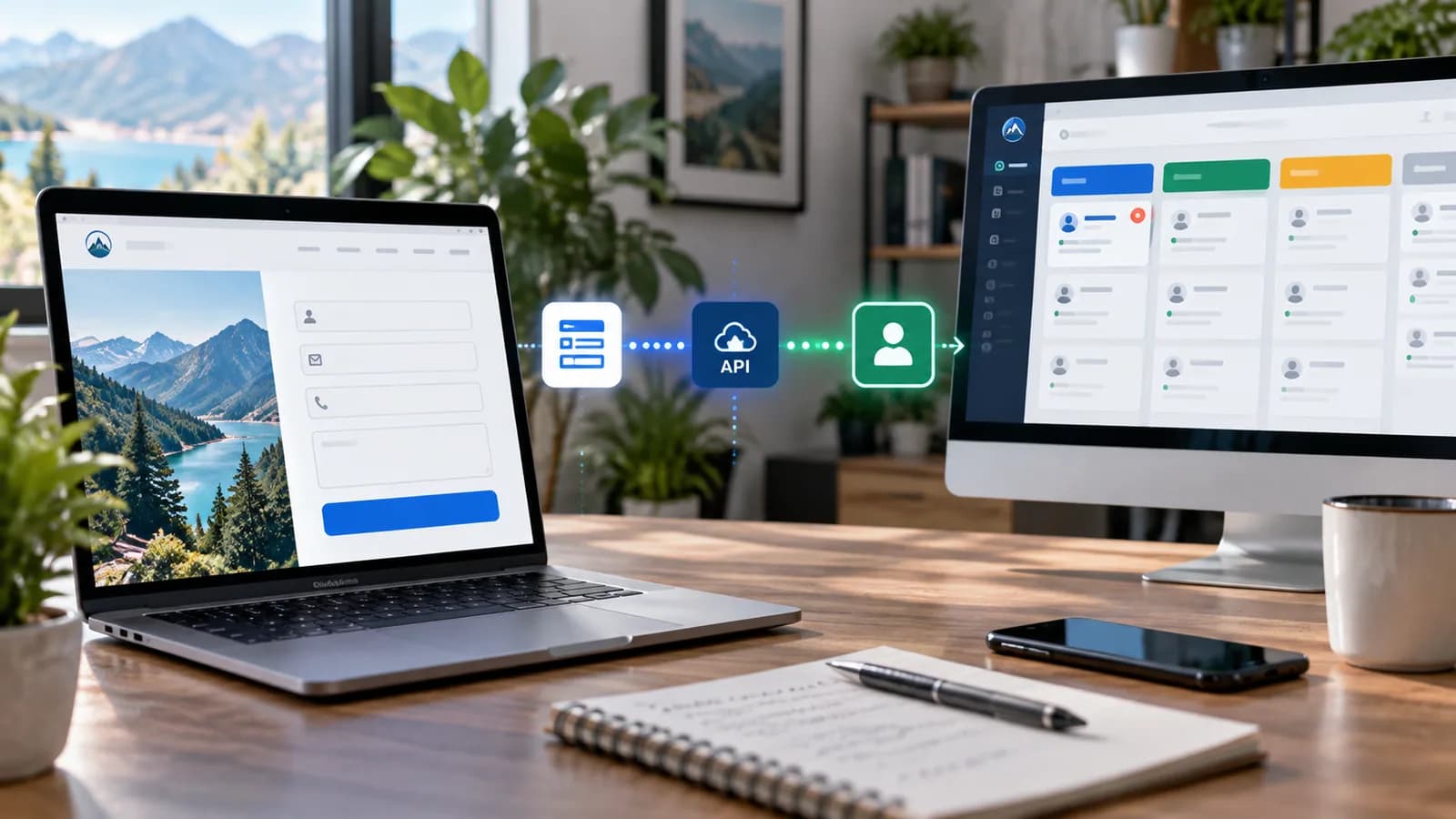
For B2B marketing websites, contact forms are the primary point of customer contact. However, many sales teams still manually copy lead information from email notifications and paste it into their CRMs. This slow process delays response times and can result in lost opportunities.
Connectors like Zapier and form plugins with CRM add-ons offer prebuilt integrations, but they often add recurring fees and can limit control over field mapping and data validation.
An alternative is linking forms directly to your Zoho or HubSpot CRM from WordPress form hooks using each CRM's REST API.
This guide details how to write secure PHP handlers to capture form submissions, authenticate API connections, and sync leads.
1. Mapping the Lead Data Structure
Before coding, map your WordPress form fields to the corresponding API fields in your CRM.
| WordPress Form ID | HubSpot API Parameter | Zoho CRM field Name |
|---|---|---|
form_name | firstname | First_Name |
form_email | email | Email |
form_phone | phone | Phone |
form_message | message | Description |
2. Syncing Elementor Forms to HubSpot CRM API
Elementor Forms features a built-in action hook called elementor_pro/forms/new_record that triggers after a form validates successfully.
Add this PHP handler to your theme's functions.php to send leads to HubSpot:
`php
add_action( 'elementor_pro/forms/new_record', 'sync_elementor_lead_to_hubspot', 10, 2 );
function sync_elementor_lead_to_hubspot( $record, $handler ) {
// Only target your specific B2B Contact Form
$form_name = $record->get_form_settings( 'form_name' );
if ( 'b2b_contact' !== $form_name ) return;
$raw_fields = $record->get_fields();
$fields = array();
foreach ( $raw_fields as $id => $field ) {
$fields[$id] = sanitize_text_field( $field['value'] );
}
// Format payload for HubSpot Contact API
$payload = array(
'properties' => array(
'email' => $fields['form_email'],
'firstname' => $fields['form_name'],
'phone' => $fields['form_phone'],
'message' => $fields['form_message']
)
);
// Create the contact. HUBSPOT_ACCESS_TOKEN is a private app token
// (HubSpot API keys were retired in 2022), defined outside the theme.
$response = wp_remote_post( 'https://api.hubapi.com/crm/v3/objects/contacts', array(
'headers' => array(
'Authorization' => 'Bearer ' . HUBSPOT_ACCESS_TOKEN,
'Content-Type' => 'application/json'
),
'body' => wp_json_encode( $payload ),
'timeout' => 10,
));
$code = is_wp_error( $response ) ? 0 : wp_remote_retrieve_response_code( $response );
if ( 409 === $code ) {
// Contact already exists: update it instead (see Duplicate Handling below)
return;
}
if ( $code < 200 || $code >= 300 ) {
error_log( 'HubSpot lead sync failed with status ' . $code );
// Queue the submission for retry (see section 4)
}
}
`
3. Syncing Contact Form 7 to Zoho CRM API
Contact Form 7 utilizes the wpcf7_before_send_mail hook, which fires before the plugin sends its email notification.
Step 1: Obtain a Zoho OAuth Access Token
Zoho CRM requires a short-lived access token generated from a refresh token. Access tokens last about an hour and Zoho limits how often new ones can be requested, so cache the token instead of requesting one per submission. Use the accounts and API domains for your Zoho data centre (for example accounts.zoho.eu and zohoapis.eu for EU accounts).
`php
function get_zoho_access_token() {
$cached = get_transient( 'zoho_access_token' );
if ( $cached ) {
return $cached;
}
$response = wp_remote_post( 'https://accounts.zoho.com/oauth/v2/token', array(
'body' => array(
'refresh_token' => ZOHO_REFRESH_TOKEN,
'client_id' => ZOHO_CLIENT_ID,
'client_secret' => ZOHO_CLIENT_SECRET,
'grant_type' => 'refresh_token'
)
));
$body = json_decode( wp_remote_retrieve_body( $response ), true );
if ( empty( $body['access_token'] ) ) {
return '';
}
// Cache slightly shorter than the token lifetime
set_transient( 'zoho_access_token', $body['access_token'], (int) ( $body['expires_in'] ?? 3600 ) - 300 );
return $body['access_token'];
}
`
Step 2: Push Submission Data to Zoho CRM
Hook into the submission process and push the lead data:
`php
add_action( 'wpcf7_before_send_mail', 'sync_cf7_lead_to_zoho' );
function sync_cf7_lead_to_zoho( $contact_form ) {
$submission = WPCF7_Submission::get_instance();
if ( ! $submission ) return;
$posted_data = $submission->get_posted_data();
$access_token = get_zoho_access_token();
if ( ! $access_token ) return;
$lead_data = array(
'data' => array(
array(
'Last_Name' => sanitize_text_field( $posted_data['your-name'] ),
'Email' => sanitize_email( $posted_data['your-email'] ),
'Description' => sanitize_text_field( $posted_data['your-message'] ),
'Lead_Source' => 'Website Contact Form'
)
)
);
$response = wp_remote_post( 'https://www.zohoapis.com/crm/v8/Leads', array(
'headers' => array(
'Authorization' => 'Zoho-oauthtoken ' . $access_token,
'Content-Type' => 'application/json'
),
'body' => wp_json_encode( $lead_data ),
'timeout' => 10,
));
if ( is_wp_error( $response ) || wp_remote_retrieve_response_code( $response ) >= 300 ) {
error_log( 'Zoho lead sync failed' );
// Queue the submission for retry (see section 4)
}
}
`
Zoho also offers an upsert endpoint (/crm/v8/Leads/upsert) that updates an existing lead matched on a duplicate-check field such as email instead of creating a duplicate. Check the Zoho CRM API documentation for the version your account supports.
Both examples run synchronously during the form submission. For busy sites, save the submission first and send it to the CRM from a background job (for example with Action Scheduler) so a slow API never delays the visitor.
4. Implementing Offline Error Queues
If your CRM goes offline, lead submissions should not be lost. Write a fallback routine that stores failed lead submissions in your local WordPress database as custom post types or options, and schedules a retry task to sync them once the API connection is restored.
5. Why Direct CRM Sync Improves Lead Quality
The real value of a WordPress to HubSpot or Zoho integration is not only automation. It is consistency. Every form submission should enter the CRM with the same lifecycle stage, source label, consent status, owner assignment, country, service interest, and follow-up priority. When those details are left to manual entry, sales reports become unreliable and the best leads are easy to miss.
For service businesses, it helps to separate website forms into intent groups. A pricing request, free consultation form, support request, newsletter signup, and partnership inquiry should not all create the same CRM object. The API layer can decide whether the submission becomes a new contact, an updated contact, a deal, a support ticket, or a task for the sales team.
This matters for SEO and conversion reporting too. If your website generates leads from Google, paid ads, Pinterest, or marketplace traffic, the CRM should keep that attribution. Store UTM source, campaign, landing page, referrer, and first-touch page. Without that data, you may know that the website is producing leads, but you will not know which service pages or blog posts are creating qualified opportunities.
6. Validation Rules Before Sending Leads
Before sending data to a CRM API, validate it inside WordPress. A strong intake workflow checks email format, required fields, phone number length, consent checkbox state, spam score, service category, message length, and duplicate submissions. Do not trust the browser alone. Client-side validation improves the user experience, but server-side validation protects your CRM.
Useful validation rules include:
- Reject submissions with missing email addresses or invalid domains.
- Normalize phone numbers before sending them to the CRM.
- Trim long message fields so the API does not reject the payload.
- Store the original raw submission in a secure internal log for debugging.
- Attach the form name and landing page URL to every CRM record.
- Use a bot trap field or spam scoring before creating a lead.
If validation fails, the visitor should still see a clear confirmation or error message. Never expose API failure details to the public page. A message such as "Your request could not be submitted, please try again" is enough for the visitor while the internal log stores the real reason.
7. Duplicate Handling and Lead Ownership
CRM duplication is one of the most common issues after connecting website forms to HubSpot or Zoho. If the API blindly creates a new lead every time, one customer can appear five times after submitting a consultation form, downloading a guide, and requesting pricing.
A better flow searches the CRM by email first. If a matching contact exists, update that record and append the new interaction as a note, timeline event, or deal. If no record exists, create a new contact. For B2B websites, you can also map email domains to companies so multiple contacts from the same business connect under one account.
Ownership rules should be explicit. For example, enterprise leads can go to the founder, support inquiries can go to operations, e-commerce setup requests can go to the web development pipeline, and SEO audit requests can go to the marketing pipeline. This turns the website into a structured lead management system instead of a generic inbox.
8. Security and Privacy Controls
CRM integrations handle names, email addresses, phone numbers, business details, and sometimes budget information. Store API keys in environment variables or server configuration, not in theme files committed to Git. Limit CRM tokens to the scopes needed for contact creation and updates. If the CRM supports private apps or scoped tokens, use them instead of broad account-level keys.
Also decide how long local failed-submission logs should be retained. A retry queue is useful, but it should not become a permanent copy of private lead data. For most small business websites, 30 to 90 days of integration logs is enough for debugging. After that, keep only anonymized counts and error types.
The form should explain what happens after submission, and marketing opt-in should be separate from operational follow-up. For visitors in the EU and UK, the GDPR and UK GDPR require a lawful basis for storing the lead (replying to an inquiry is usually covered by legitimate interests or pre-contract steps), and marketing emails generally need a separate, unticked opt-in under the ePrivacy rules and PECR. HubSpot and Zoho act as your processors, so put their data processing agreements in place. In the US, marketing emails must follow CAN-SPAM, including a working unsubscribe, and California residents have CCPA/CPRA rights where your business meets the thresholds. Map the consent answer into a CRM property so marketing tools can respect it. This is general information, not legal advice.
9. Reporting Dashboard for Form-to-CRM Performance
Once the integration is live, create a simple reporting view. Track total submissions, accepted CRM syncs, failed API calls, duplicate updates, spam rejections, average response time, and leads by landing page. These numbers show whether the automation is actually improving operations.
The dashboard does not need to be complex. A weekly summary can answer practical questions:
- Which forms generate the most qualified leads?
- Which pages create consultation requests?
- Which CRM fields are often missing?
- Are API failures increasing after plugin updates?
- Are leads assigned to the correct owner?
- Is response time improving after automation?
This is where website development, CRM implementation, and business automation overlap. If your forms are generating leads but the business is slow to respond, automation should create tasks, reminders, or Slack notifications as soon as a qualified lead arrives.
10. When to Use Custom API Integration Instead of Zapier
Zapier, Make, and built-in form plugin integrations are good starting points. They are fast to launch and useful for simple workflows. A custom API integration becomes better when you need strict field mapping, lower recurring costs, private data handling, conditional lead routing, custom retry logic, or deeper reporting.
Use a connector when the form is basic and the cost is acceptable. Use custom code when the website is a serious sales channel and the CRM workflow affects revenue. A direct API integration is especially valuable for agencies, consultants, clinics, legal firms, SaaS businesses, home service companies, and e-commerce teams that rely on fast follow-up.
For businesses planning a stronger intake workflow, the implementation pairs naturally with business website development, Business Automation & Integrations, and website maintenance.
11. CRM Integration QA Checklist
Before launch, test the integration like a production system, not like a simple form plugin.
- Submit valid and invalid test leads.
- Test duplicate email updates.
- Confirm consent fields are mapped correctly.
- Confirm UTM and landing page data reach the CRM.
- Disconnect the CRM temporarily and verify retry logging.
- Rotate API credentials and confirm the site reads the new secret.
- Check that spam submissions do not create CRM records.
- Confirm sales owners receive notifications.
- Review CRM reports after one week of real traffic.
This protects both the user experience and the sales process. A hidden CRM failure can quietly lose leads for weeks if nobody is monitoring it.
Frequently Asked Questions
Is a direct HubSpot or Zoho API integration better than a plugin?
It depends on the workflow. A plugin is fine for simple contact capture. A direct API integration is better when you need custom field mapping, lead scoring, duplicate handling, retry queues, private logs, and reliable attribution data.
Can Elementor Forms and Contact Form 7 both send leads to the same CRM?
Yes. Each form plugin has different hooks, but both can send standardized payloads to the same CRM. The important step is building one shared mapping layer so all submissions use consistent field names and lead statuses.
What happens if the CRM API is offline?
The website should save the submission in a secure failed-sync queue and retry later. The visitor should not lose the lead because a third-party API timed out.
Should every form submission create a deal?
No. Consultation and pricing requests may create deals, but newsletter signups or general questions may only update a contact. Deal creation should match real sales intent.
Final Recommendation
Connecting your contact forms directly to a CRM API speeds up sales follow-ups, protects lead data privacy, and eliminates unnecessary manual work. The strongest setup is not just "send form to CRM." It is a complete lead intake system with validation, attribution, ownership, retry logging, and reporting.
Related posts

Shared vs VPS vs Managed Hosting for a Small Business Website or Store
A plain comparison of shared hosting, VPS and managed hosting or PaaS for small business sites and online stores: responsibilities, isolation and performance, the signs a WooCommerce store or Next.js app has outgrown shared hosting, GDPR data residency, and a decision table.
Read article →

How to Secure a New Ubuntu VPS: A Setup Checklist for Business Websites
A step-by-step hardening checklist for a fresh Ubuntu 26.04 or 24.04 LTS VPS that will host a business website, with copy-paste commands for SSH keys, ufw, unattended-upgrades, fail2ban, time sync, swap, monitoring and backups.
Read article →

A Practical Incident Response Plan for Small Businesses (with Template)
How a 5 to 50 person business can plan for a cyber incident: who does what, the contact list to keep offline, a first-hour checklist, containment, evidence preservation, communication, recovery, breach-notification duties under GDPR, UK GDPR and US state laws, and a fill-in template.
Read article →
Author
Anushka Dahanayake
Anushka Dahanayake builds SEO-focused websites, e-commerce platforms, dashboards, and automation systems for businesses worldwide.