
Model Context Protocol (MCP) in Production: Deploying Custom Servers to Automate Server SSH Workflows
Learn how to build and run custom Model Context Protocol (MCP) servers to automate deployments and manage servers securely from your IDE.
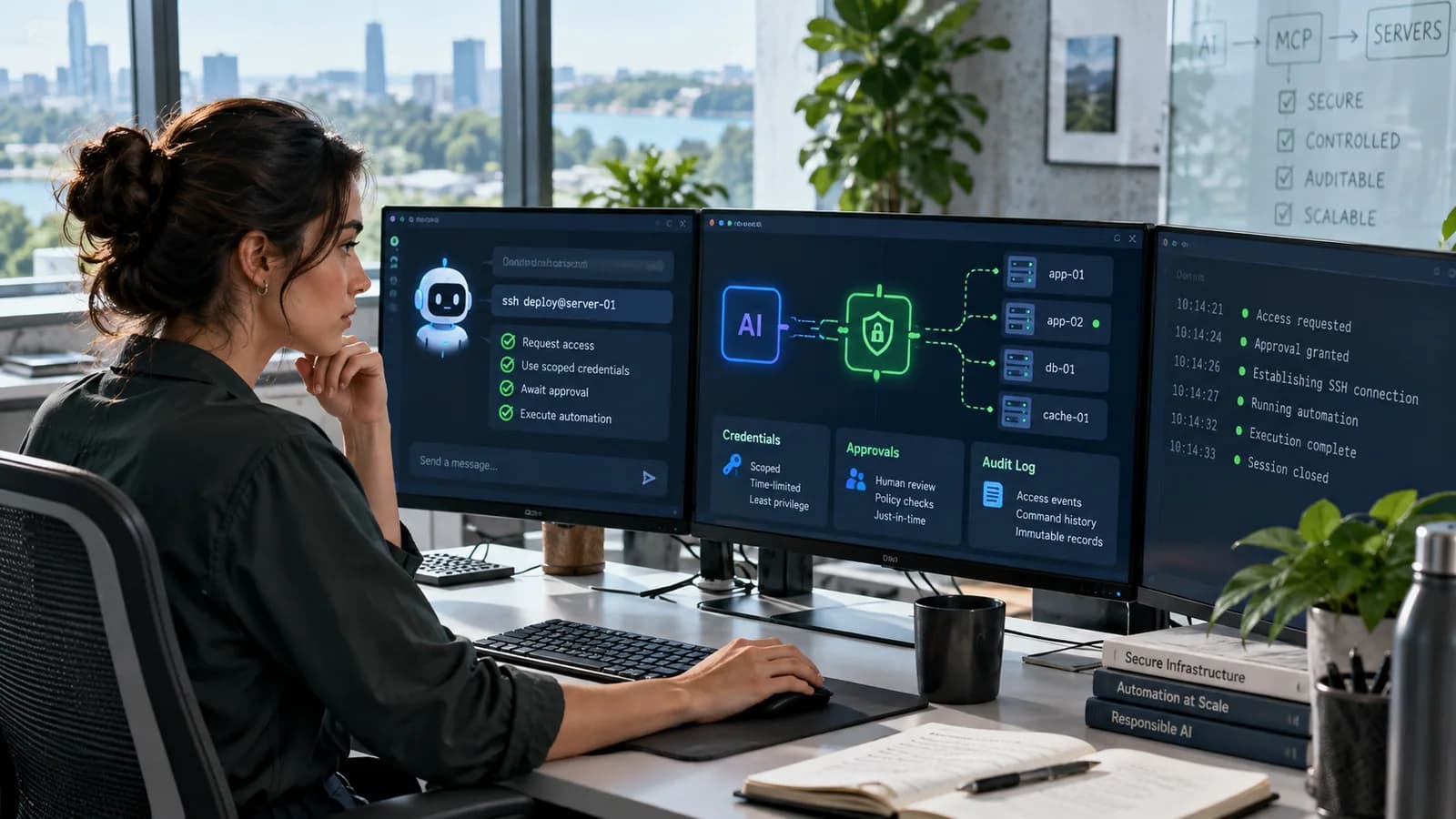
The Model Context Protocol (MCP), an open standard introduced by Anthropic, is a protocol that enables AI assistants to interact with local and remote filesystems, APIs, and dev environments. While standard MCP servers handle simple filesystem actions, deploying custom MCP servers in production allows you to automate complex server deployments and SSH configurations directly from your AI-integrated IDE.
However, granting an AI engine access to production servers via SSH introduces critical security risks. If your custom MCP server lacks strict authorization controls, a hallucinated command could delete databases or expose keys.
This guide details how to build a custom MCP server in Node.js, run SSH tasks securely, and implement restriction layers to protect your production resources.
1. What is an MCP Server?
MCP works on a client-server architecture:
- MCP Client: The AI application or IDE (e.g. Claude Code, Claude Desktop, Cursor or VS Code) that connects to servers and passes their tools to the model.
- MCP Server: A lightweight process that exposes specific tools (functions), resources and prompts. Local servers usually communicate over standard input/output (stdio); remote servers use the Streamable HTTP transport.
- AI Agent: Reads tool descriptions, decides which tool to call, and processes the output.
2. Building a Custom SSH MCP Server in Node.js
Let's build a custom MCP server that allows an AI assistant to check remote server disk usage and pull the latest Git commits on staging servers.
Step 1: Initialize the Server Project
`bash
mkdir ssh-mcp-server
cd ssh-mcp-server
npm init -y
npm pkg set type=module
npm install @modelcontextprotocol/sdk ssh2 dotenv
`
Step 2: Write the Server Code
The code uses ES modules and top-level await, which is why the package type is set to module above. Create a file named index.js and implement the MCP tool definitions:
`javascript
import { Server } from "@modelcontextprotocol/sdk/server/index.js";
import { StdioServerTransport } from "@modelcontextprotocol/sdk/server/stdio.js";
import { CallToolRequestSchema, ListToolsRequestSchema } from "@modelcontextprotocol/sdk/types.js";
import { Client } from "ssh2";
import { readFileSync } from "node:fs";
import dotenv from "dotenv";
dotenv.config();
const server = new Server(
{ name: "secure-ssh-mcp-server", version: "1.0.0" },
{ capabilities: { tools: {} } }
);
// Define tools available to the AI Assistant
server.setRequestHandler(ListToolsRequestSchema, async () => ({
tools: [
{
name: "run_git_pull",
description: "Pulls the latest Git code on the staging server.",
inputSchema: {
type: "object",
properties: {
project: { type: "string", description: "Project directory name under /var/www/" }
},
required: ["project"]
}
}
]
}));
// Handle tool executions
server.setRequestHandler(CallToolRequestSchema, async (request) => {
if (request.params.name === "run_git_pull") {
const project = request.params.arguments?.project;
// Strict Input Validation (Prevent Path Traversal)
if (typeof project !== "string" || !/^[a-zA-Z0-9_-]+$/.test(project)) {
throw new Error("Invalid project name structure.");
}
const command = cd /var/www/${project} && git pull origin main;
const result = await executeSshCommand(command);
return {
content: [{ type: "text", text: result }]
};
}
throw new Error("Tool not found.");
});
function executeSshCommand(command) {
return new Promise((resolve, reject) => {
const conn = new Client();
// Fail instead of hanging forever on a stuck command
const timer = setTimeout(() => {
conn.end();
reject(new Error("SSH command timed out"));
}, 30000);
conn.on("error", (err) => {
clearTimeout(timer);
reject(err);
});
conn.on("ready", () => {
conn.exec(command, (err, stream) => {
if (err) {
clearTimeout(timer);
conn.end();
return reject(err);
}
let output = "";
stream.on("close", (code) => {
clearTimeout(timer);
conn.end();
// Bound the output returned to the model
resolve(exit ${code}\n + output.slice(-4000));
}).on("data", (data) => {
output += data;
}).stderr.on("data", (data) => {
output += "STDERR: " + data;
});
});
}).connect({
host: process.env.SSH_HOST,
port: 22,
username: process.env.SSH_USER,
privateKey: readFileSync(process.env.SSH_KEY_PATH)
});
});
}
const transport = new StdioServerTransport();
await server.connect(transport);
`
3. Registering the Server in Your IDE
To use your custom server locally, add it to your client's MCP configuration. Cursor and Claude Desktop use an mcpServers object like the one below; VS Code's mcp.json uses a top-level servers key with the same command, args and env fields. Check your client's current documentation for the file location.
`json
{
"mcpServers": {
"ssh-mcp-server": {
"command": "node",
"args": ["/absolute/path/to/ssh-mcp-server/index.js"],
"env": {
"SSH_HOST": "192.168.1.100",
"SSH_USER": "deploy",
"SSH_KEY_PATH": "/Users/username/.ssh/mcp_deploy_ed25519"
}
}
}
}
`
4. Security Constraints for Production
When running custom MCP tools, enforce the following security layers:
- 1Avoid Arbitrary Command Execution: Never expose a general
run_commandtool that accepts raw strings. Only expose specific tools likerun_git_pullorcheck_disk_usage. - 2Use a Sandboxed SSH User: Connect via an SSH key mapped to a user account with limited privileges (
deployrather thanroot), restricted to specific directories viasudoersparameters. - 3Validate Arguments: Use regular expressions to clean user arguments to prevent command injection exploits.
5. Production Use Cases for Custom MCP Servers
Custom MCP servers are most useful when a business has repeated technical workflows that are too specific for generic automation tools. For example, a development team may need to check disk usage, restart a queue worker, pull staging code, inspect deployment logs, clear a framework cache, run database migrations on staging, or verify whether a background service is healthy.
Those tasks are not strategic by themselves, but they interrupt delivery when they require manual SSH every time. A well-designed MCP server can expose each task as a narrow, named tool with clear input rules. The AI assistant can then help the developer execute safe routines faster while still staying inside approved boundaries.
The important principle is scope. MCP should not become a remote shell hidden behind a friendly interface. It should be a controlled automation layer that performs known operations with strong validation, audit logging, and human review for risky actions.
6. Permission Design and Command Allowlisting
The safest production MCP design starts with an allowlist. Instead of accepting arbitrary commands, define a small set of actions such as check_disk_usage, tail_staging_logs, deploy_staging_branch, restart_worker, or clear_app_cache. Each tool should have a short description, a strict input schema, and server-side validation.
Avoid inputs such as command, path, or script unless they are heavily constrained. A tool that accepts raw shell text is difficult to secure because the model can accidentally or incorrectly create destructive commands. A tool that accepts a project key from a known list is much safer.
Also separate environments. A staging server tool can allow deployment checks. A production tool should require additional confirmation or avoid write actions entirely. If production write actions are needed, log the reason, user, timestamp, target service, and result.
7. Secrets, SSH Keys, and Environment Isolation
Never give an MCP server access to your personal SSH key when it is managing business infrastructure. Create a dedicated deploy key or deploy user with the smallest possible permissions. The SSH account should not have unrestricted root access. If a command requires sudo, configure a narrow sudoers rule for the exact command.
Secrets should live in environment variables, secret managers, or deployment platform settings. Do not hard-code keys inside the MCP server repository. Rotate keys when team members leave, when machines are replaced, or when logs suggest abnormal access.
For local development, keep MCP servers separated by project. A server for one client should not expose tools for another client. This protects client data and reduces the risk of accidentally running an operation on the wrong environment.
8. Audit Logging for AI-Assisted Operations
Every MCP tool call should create an audit record. At minimum, log the tool name, arguments after validation, requesting user, server target, timestamp, execution duration, success status, and summarized output. Do not store sensitive command output if it contains secrets, tokens, customer data, or private file paths.
Audit logs help answer practical questions:
- Who triggered the deployment check?
- What branch was deployed to staging?
- Did the restart command succeed?
- Which command failed before an outage?
- Was a production action approved?
For client work, audit trails also build trust. They show that automation is being used as a controlled operational system rather than an uncontrolled experiment.
9. Safety Score for MCP SSH Automation
Use this 100-point review before connecting an MCP server to real infrastructure:
| Area | Points |
|---|---|
| No arbitrary shell command tool | 20 |
| Dedicated restricted SSH user | 15 |
| Strict input schemas and validation | 15 |
| Environment separation for staging and production | 10 |
| Audit logging for all tool calls | 10 |
| Secrets stored outside source code | 10 |
| Production write actions require review | 10 |
| Error output redacted and bounded | 5 |
| Key rotation plan documented | 5 |
Anything under 80 should stay away from production. The goal is not to slow down development. The goal is to make automation predictable enough that it can be trusted.
10. Monitoring and Failure Handling
An MCP server can fail for ordinary reasons: SSH timeout, expired key, server firewall changes, bad deployment state, missing environment variable, or a command that produces too much output. The server should return clear, bounded errors instead of dumping full logs into the AI chat.
Use timeouts for every SSH command. Cap output length. Redact environment variables and tokens. Return structured status such as success, failed, timeout, or requires_manual_review. If a command affects production, send an alert to Slack or email so the action is visible outside the AI tool.
For deployment workflows, pair the MCP tool with a checklist. Confirm the target environment, branch, dependency state, backup status, migration risk, and rollback path before allowing changes.
11. Where MCP Fits in a Business Web System
For a business website or e-commerce platform, MCP can support maintenance workflows rather than replace normal engineering practice. It can help inspect logs, summarize errors, compare deployment state, check background jobs, or run low-risk staging tasks. It should not replace backups, monitoring, CI/CD, or access control.
This kind of automation fits naturally with website maintenance and business website development. Businesses that rely on their website for leads or sales need operational systems that are fast and controlled.
12. Common MCP Security Mistakes
The biggest mistake is exposing a flexible command runner. The second biggest mistake is using a powerful SSH account because it is convenient. Other mistakes include missing logs, broad file permissions, weak project validation, unbounded command output, and mixing multiple clients inside one MCP server.
Another common issue is treating the model as the security boundary. The model is not the boundary. The MCP server is the boundary. The server should reject unsafe input even if the assistant asks politely.
13. A Practical Rollout Plan
Start with one read-only tool on staging, such as checking disk usage or reading the last safe slice of an application log. After that works reliably, add one controlled staging action. Review the logs for a week before adding production visibility. Production write actions should be the final stage, and many businesses may never need them.
This slow rollout makes adoption easier for non-technical stakeholders too. They can see that MCP is not uncontrolled AI access. It is a small operational layer with approved tools, clear records, and rollback thinking.
Frequently Asked Questions
Should MCP tools be allowed to run production commands?
Only in narrow cases with strong controls. Production write actions should be specific, logged, reversible, and approved. Most MCP automation should begin with read-only diagnostics and staging operations.
Is MCP the same as CI/CD?
No. CI/CD is the deployment pipeline. MCP is an interface that lets an AI assistant call approved tools. For serious systems, MCP should complement CI/CD rather than bypass it.
Can small businesses use MCP safely?
Yes, if the scope is narrow. A small business can use MCP for health checks, log summaries, staging deploys, and maintenance reminders. Risk increases when tools can run arbitrary commands or access production data.
What is the most important security rule?
Never expose unrestricted command execution. Build small tools with fixed behavior, strict validation, and clear logs.
Final Recommendation
Building specialized MCP servers can make development and maintenance faster, but only when the automation is bounded. Treat each tool like a production API endpoint: validate input, limit permissions, log actions, and design for recovery.
Related posts

Shared vs VPS vs Managed Hosting for a Small Business Website or Store
A plain comparison of shared hosting, VPS and managed hosting or PaaS for small business sites and online stores: responsibilities, isolation and performance, the signs a WooCommerce store or Next.js app has outgrown shared hosting, GDPR data residency, and a decision table.
Read article →

How to Secure a New Ubuntu VPS: A Setup Checklist for Business Websites
A step-by-step hardening checklist for a fresh Ubuntu 26.04 or 24.04 LTS VPS that will host a business website, with copy-paste commands for SSH keys, ufw, unattended-upgrades, fail2ban, time sync, swap, monitoring and backups.
Read article →
Deploy a Next.js 16 App on a VPS with Nginx, systemd or PM2, and HTTPS
A working guide to running Next.js 16 on your own VPS: Node.js LTS, build-time versus runtime environment variables, a systemd unit and PM2 alternative, an Nginx server block with certbot HTTPS, the standalone output option, logs, and a two-port release script.
Read article →
Author
Anushka Dahanayake
Anushka Dahanayake builds SEO-focused websites, e-commerce platforms, dashboards, and automation systems for businesses worldwide.