
Client Portal Development: Features, Security and Architecture
A practical client portal development guide for businesses that need secure customer access, document sharing, approvals, requests, dashboards and workflow automation.
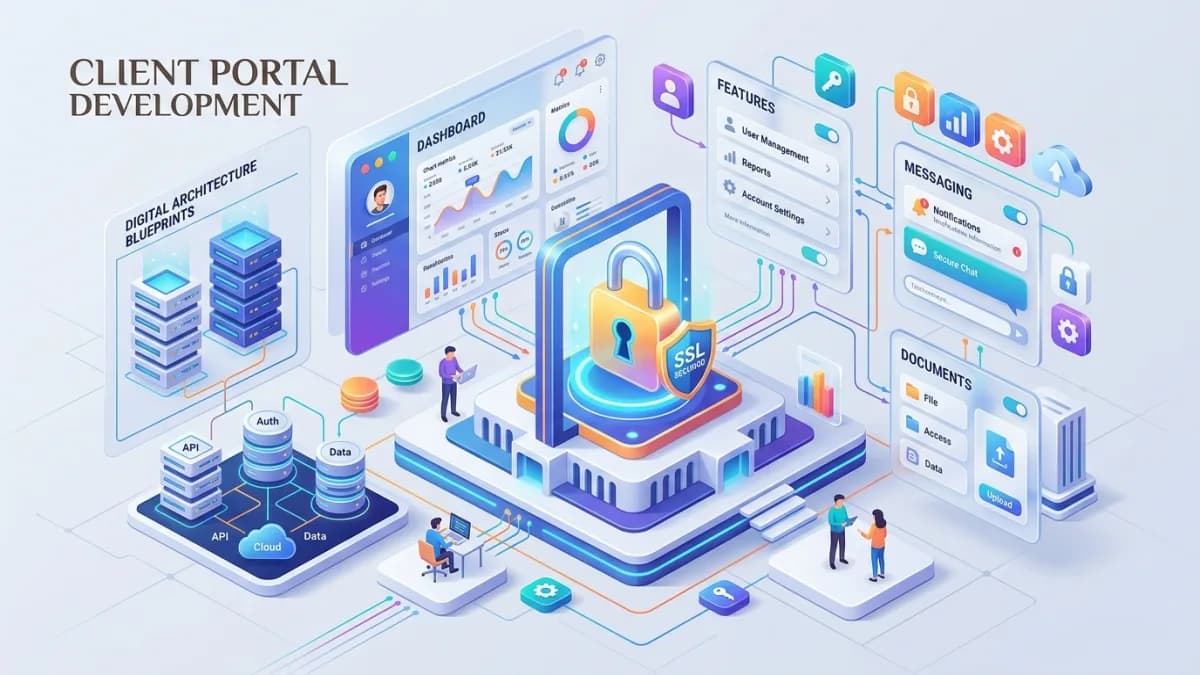
A client portal is not just a login page. It is a controlled operating space where clients, customers, members, suppliers or partners can access the right information, complete the right tasks and interact with your business without everything depending on email, WhatsApp messages and manual follow-up.
The best portals reduce friction. The worst portals create a second inbox with worse security.
If your business wants a portal, the most important decision is not the color of the dashboard. It is the operating model. Who can access what? Which records belong to which client? Which actions need approval? Which files are sensitive? Which notifications should go by email, and which should stay inside the portal? Which integrations must be reliable enough to trust?
This guide is written for business owners, agencies, SaaS founders, service companies, education providers, consultants, clinics, real estate teams, finance teams and operations managers planning custom client portal development. It explains the features, security controls and architecture decisions you should define before writing code or buying a portal platform.
Use this together with the Modern Business Website Technology Guide, Next.js vs WordPress for Business Websites, Website Redesign Checklist, and Client Management Portals vs Email.
Key Takeaways
- A portal should be designed around workflows, permissions and data ownership, not only screens.
- The first portal version should usually serve one high-value workflow extremely well.
- Authentication proves who the user is; authorization decides what that user can do.
- Broken access control is a major web application risk, so every portal needs server-side permission checks and tenant isolation.
- File sharing, invoices, messages and reports need stronger controls than ordinary marketing website content.
- Email should notify users that something happened, not expose sensitive portal data.
- Audit trails, admin controls, support workflows and recovery paths are product requirements, not luxury features.
- Accessibility, mobile usability and clear empty states matter because clients may use the portal under pressure.
- A 100/100 portal plan includes features, security, testing, analytics, support and maintenance.
What a Client Portal Should Do
A client portal should give each user a secure, useful and limited view of their relationship with your business.
That word limited matters.
A good portal does not show every possible thing your team knows. It shows what the user needs to see, at the moment they need to see it, with the actions they are allowed to take.
Depending on the business, a portal may support:
- client onboarding
- document collection
- project updates
- support requests
- appointment booking
- membership access
- invoices and payment status
- order or service tracking
- approvals and sign-offs
- dashboards and reports
- secure messaging
- knowledge base access
- account management
- subscription management
- internal staff collaboration
The mistake is trying to build all of this at once.
The better approach is to define the portal's primary job. For example:
- A digital agency may need approvals, project updates, documents and support requests.
- A consultancy may need onboarding forms, meeting notes, action items and invoice history.
- A real estate business may need property documents, viewing schedules and buyer/seller updates.
- A healthcare or wellness business may need appointment workflows, intake forms and policy-controlled records.
- An education business may need lessons, progress tracking, certificates and support.
- A B2B supplier may need order status, invoices, downloadable resources and account contacts.
If the portal does not reduce confusion, response time, repeated questions or administrative load, it is probably not ready to build.
When a Portal Is Worth Building
Not every business needs a custom portal. Sometimes a good CRM, helpdesk, project management tool, shared drive or e-commerce account area is enough.
A portal becomes worth considering when several of these are true:
- clients repeatedly ask for the same updates
- important documents are scattered across email threads
- approvals get lost or disputed
- sensitive files are shared through weak channels
- staff spend too much time copying status updates manually
- clients need self-service access outside office hours
- multiple stakeholders from the same client company need different access levels
- work moves through repeatable stages
- the business wants a more professional post-sale experience
- the company needs a branded system instead of sending clients into third-party tools
- the existing software stack cannot express the actual workflow
The portal should have a business case.
Useful outcomes include:
- fewer manual update emails
- faster document collection
- clearer project ownership
- fewer support calls
- faster approval cycles
- better client retention
- fewer data handling mistakes
- cleaner reporting
- higher perceived professionalism
- easier scaling for staff
If the portal is only there because competitors have one, pause. A portal without a workflow becomes a digital cupboard: impressive for one week, then quietly abandoned.
Portal Users, Roles and Data Model
Portal planning starts with people and records.
Before screens are designed, define:
- user types
- organization or account structure
- ownership rules
- role permissions
- workflow states
- records that must be shared
- records that must remain internal
Common user types include:
| User type | Typical access |
|---|---|
| Client owner | Full access to their organization's projects, invoices and users |
| Client member | Limited access to assigned projects, documents or requests |
| External collaborator | Narrow access to one workflow or file area |
| Internal admin | Full operational control |
| Internal staff | Assigned client/project access |
| Support user | Ticket and communication access |
| Finance user | Invoice and payment-related access |
| Auditor or reviewer | Read-only access to selected records |
The data model should normally include:
- organization or client account
- user
- role
- permission
- project or engagement
- request or ticket
- task
- document
- message
- notification
- invoice or payment record
- approval
- audit event
The key question is simple:
Can one user ever see another client's private data?
If the answer is no, tenant isolation must be designed from the beginning. Do not leave it as an afterthought. Every query, action, upload, download and notification should respect the user's organization, role and assignment.
Core Client Portal Features
The best feature list depends on the workflow, but most useful portals share a few foundations.
Dashboard
The dashboard should answer:
- What needs my attention?
- What changed recently?
- What is waiting for the business?
- What is waiting for me?
- Where do I go next?
Avoid a dashboard full of decorative cards. A portal dashboard should be practical.
Useful dashboard blocks include:
- open tasks
- pending approvals
- recent messages
- unread notifications
- upcoming appointments
- document requests
- invoice/payment status
- project progress
- support ticket status
- important announcements
Profile and account settings
Users need a safe way to manage:
- name
- phone number
- password
- multi-factor authentication preference
- notification settings
- company details where allowed
- billing contact details where allowed
Changes to sensitive fields should trigger notification or re-authentication when appropriate.
Requests and support
Requests are where many portals become valuable.
Instead of sending vague emails, clients can submit structured requests with:
- request type
- priority
- description
- attachments
- affected service or project
- due date if relevant
- status
- assigned owner
- comments
Structured requests help the business route work, measure response time and reduce confusion.
Documents and resources
Document areas may include:
- uploaded client files
- generated reports
- contracts
- proposals
- invoices
- receipts
- templates
- onboarding documents
- policies
- brand assets
- deliverables
Documents need permissions, version control, retention rules and clear ownership. A file area without governance quickly becomes another messy shared drive.
Approvals
Approvals should capture:
- what was approved
- who approved it
- when it was approved
- whether conditions were attached
- previous versions
- related comments
This protects both the business and the client. It also reduces disputes later.
Reports and progress
For service businesses, reporting is often the reason clients return to the portal.
Reports may show:
- project milestones
- campaign results
- SEO metrics
- service usage
- ticket volume
- onboarding progress
- training completion
- subscription status
- key documents received
Keep reports connected to business outcomes. A pretty chart that does not answer a client question is ornamental.
Authentication and Account Lifecycle
Authentication proves that a user is who they claim to be. For a portal, authentication should be designed as a lifecycle, not just a login form.
Important account lifecycle events include:
- invitation
- account activation
- login
- logout
- password reset
- email change
- role change
- multi-factor setup
- device/session review
- account suspension
- account deletion or archival
Login and password reset
A portal should support:
- secure password storage
- rate limiting on login attempts
- password reset tokens with expiry
- generic error messages that do not reveal whether an email exists
- session invalidation after sensitive changes
- secure cookies
- protection against automated abuse
OWASP authentication guidance recommends multi-factor authentication where practical, login throttling and careful handling of authentication errors. These controls are not decoration. They reduce the chance that a portal becomes the easiest path into sensitive client data.
Multi-factor authentication
MFA should be considered when the portal contains:
- financial records
- private client documents
- health or identity information
- business-critical dashboards
- admin controls
- user management
- payment methods
- confidential messages
For some audiences, forcing MFA on every user may create support friction. A practical model is:
- require MFA for admins
- require MFA for staff
- strongly encourage MFA for clients
- require MFA for clients with sensitive data
- re-authenticate before high-risk actions
Invitations and offboarding
Many portal risks come from old access.
Plan:
- who can invite users
- whether invitations expire
- whether invite links are single-use
- whether new users need approval
- who can remove users
- what happens when a client's employee leaves
- whether removed users keep access to historical notifications
- how support verifies removal requests
Offboarding must be easy. If removing access requires developer help, it will be delayed.
Authorization and Permissions
Authorization decides what an authenticated user can do.
This is where portals often fail.
Broken access control is the first item in the OWASP Top 10:2025, as it was in the 2021 edition. The practical lesson is direct: do not trust the front end, the URL, hidden fields or client-provided identifiers to enforce permissions.
Authorization should be checked on the server for every sensitive action:
- viewing a record
- editing a record
- downloading a file
- uploading a file
- inviting a user
- changing a role
- approving a task
- sending a message
- exporting data
- viewing billing information
- accessing admin screens
Permission model
Start with roles, but do not stop there.
A role may say a user is a client member. Ownership rules decide which client account they belong to. Assignment rules decide which projects they can see. State rules decide whether they can approve something now.
Useful permission questions:
- Can this user see this client account?
- Can this user see this project?
- Can this user access this document?
- Can this user perform this action?
- Is this action allowed in the current workflow state?
- Does this action require approval by another user?
- Should this action be logged?
Deny by default
The safe default is no access unless the application can prove access should be granted.
This means:
- users do not get broad access automatically
- new roles start with minimal permissions
- admin actions are separate from client actions
- staff access is scoped by assignment where possible
- archived clients are locked down
- deleted or suspended users cannot continue using old sessions
Authorization is not a one-time task. It needs tests.
Documents, Files and Sensitive Data
Files are one of the highest-risk areas in client portal development.
A portal may store:
- identity documents
- contracts
- invoices
- payment receipts
- tax records
- design files
- business reports
- private messages
- internal comments
- signed documents
- medical or legal records in regulated industries
Do not treat file upload as a simple attachment feature.
File requirements should include:
- allowed file types
- maximum file size
- malware scanning where appropriate
- private storage by default
- short-lived download links
- access checks before every download
- version history
- retention rules
- deletion or archival process
- visible upload status
- failed upload recovery
- audit log for sensitive file events
Avoid exposing direct public file URLs for private documents. If a link can be copied and opened by anyone, it is not private access control.
Also decide whether staff can upload internal-only files. A delivery document may be client-visible, but internal notes, cost calculations and QA comments should remain separate.
Messaging, Notifications and Email Boundaries
Portals usually need communication, but communication design should be careful.
There are three different things:
- portal messages
- notifications
- email copies
Portal messages can contain business detail. Notifications tell users that something needs attention. Email should be treated as less controlled unless your business has specific secure email policies.
Good notification examples:
- A new document is ready in your portal.
- Your approval is requested for Project Alpha.
- Your invoice status has changed.
- A support request received a reply.
- Your account role was changed.
Risky notification examples:
- attaching sensitive documents directly
- including confidential comments in email previews
- exposing private project data in subject lines
- sending invoice details to unverified addresses
- notifying old users after offboarding
Give users notification preferences, but keep critical security notifications enabled.
Approvals, Tasks and Audit Trail
Portals become powerful when they convert informal communication into controlled workflow.
Tasks should have:
- title
- owner
- due date
- status
- priority
- related project
- related files
- comments
- history
Approvals should have:
- approver
- requestor
- item approved
- timestamp
- version
- comments
- result
- follow-up action
Audit events should record:
- user
- action
- time
- affected record
- previous state where relevant
- new state where relevant
- IP or device metadata where appropriate
An audit trail is not only for security. It also answers ordinary business questions:
- Who approved this?
- When was the document uploaded?
- Who changed the deadline?
- Was the client notified?
- Which staff member closed the ticket?
If you cannot answer those questions later, the portal may create more operational risk than it removes.
Integrations and Automation
A portal rarely lives alone.
It may connect to:
- CRM
- accounting software
- payment gateway
- email service
- SMS or WhatsApp provider
- document signing platform
- analytics
- project management tools
- support desk
- calendar booking tools
- internal databases
Integration planning should define:
- source of truth
- sync direction
- data mapping
- retry behavior
- duplicate prevention
- error alerts
- manual override process
- permission boundaries
- logging
The source of truth is especially important. If the CRM says a client is inactive but the portal says active, which system wins?
Automation should also be idempotent. That means repeated processing should not create duplicate invoices, duplicate users, duplicate emails or duplicate tasks.
Start with low-risk automation:
- send a portal notification when a task is assigned
- create a document request after onboarding starts
- mark onboarding complete when required files are approved
- alert staff when a client uploads a file
- create a support ticket from a portal request
Avoid fully automating high-risk actions until the workflow is proven.
Architecture Options
There are four common approaches to client portal development.
SaaS portal
A SaaS portal is fastest when your workflow fits the product.
Pros:
- fast setup
- lower initial cost
- built-in hosting
- existing support
- integrations may already exist
Cons:
- limited customization
- monthly cost scales with users or features
- branding limits
- data portability questions
- workflow compromises
Choose this when the portal is mostly standard: documents, tickets, invoices, bookings or memberships.
WordPress portal plugin
WordPress portal plugins can work for simple membership or client areas.
Pros:
- familiar admin area
- many plugins
- lower development barrier
- content and portal can share the same CMS
Cons:
- plugin compatibility risk
- performance can suffer
- security depends heavily on maintenance
- complex workflows can become fragile
- permissions may be difficult to model cleanly
Choose this only when the workflow is simple and maintenance discipline is strong.
Custom web application
A custom portal is best when the workflow, permissions or integrations are central to the business.
Pros:
- tailored data model
- custom permission rules
- better workflow control
- stronger integration design
- scalable product foundation
- cleaner user experience
Cons:
- higher planning effort
- higher development cost
- requires maintenance
- requires stronger testing
A modern stack may use Next.js for the application interface, a secure database layer, server-side authorization, object storage for private files, transactional email, background jobs, analytics and monitoring.
Choose this when the portal is part of the operating system of the business, not just a convenience.
CRM or ERP portal
Some CRMs and ERPs include customer portal features.
Pros:
- data already lives in the system
- built-in account relationships
- good for sales/service workflows
- fewer integrations
Cons:
- user experience may be generic
- custom workflows may be expensive
- external users may need paid seats
- branding and front-end flexibility may be limited
Choose this when internal operations already run strongly through the CRM or ERP.
Security and Privacy Requirements
For a business portal, security should be planned as requirements, not added as a final scan.
OWASP ASVS provides a structured way to define and test web application security requirements. You do not need to turn a small portal project into a giant compliance exercise, but you should use the same mindset: define what must be true, then verify it.
Important requirements include:
- HTTPS everywhere
- secure cookies
- CSRF protection where relevant
- input validation
- output encoding
- protection against injection
- server-side authorization
- tenant isolation
- password reset security
- MFA for privileged accounts
- admin action logging
- file access controls
- secrets management
- dependency updates
- backup and recovery
- error monitoring
- rate limiting
- privacy-aware analytics
- data retention policy
Privacy planning should answer:
- What personal data is collected?
- Why is it collected?
- Who can access it?
- Where is it stored?
- How long is it kept?
- How can incorrect data be corrected?
- What happens if a client leaves?
- What data appears in emails?
- What data appears in exports?
- Who handles support access?
If clients or their staff are in the EU or UK, GDPR and UK GDPR also require a lawful basis for the processing, a clear privacy notice, a processor agreement when you host the portal on their behalf, and a way to handle access, correction and deletion requests. California residents have similar rights under the CCPA/CPRA.
If your portal handles regulated data, legal, medical, financial or sensitive identity information, get qualified legal and security advice for your jurisdiction before launch.
Accessibility and User Experience
A secure portal still fails if clients cannot use it.
WCAG 2.2 is the current W3C Recommendation for web content accessibility. For a portal, accessibility is especially important around forms, navigation, errors, login, password reset, uploads and mobile workflows.
Practical UX requirements:
- clear login and recovery flow
- mobile-friendly forms
- visible focus states
- keyboard-accessible navigation
- readable labels
- helpful validation messages
- clear upload progress
- confirmation before destructive actions
- useful empty states
- plain-language status labels
- breadcrumbs or context where helpful
- accessible color contrast
- no critical action hidden only behind hover
Error messages should explain what the user can do next.
Weak message:
Something went wrong.
Better message:
We could not upload this file. Please use a PDF, JPG or PNG under 10 MB, then try again.
Portals are often used when someone is trying to finish a task quickly. Good UX lowers support tickets.
Testing and Launch Checklist
Portal launch testing must go beyond checking whether pages load.
Test with realistic users:
- admin
- staff
- client owner
- client member
- restricted collaborator
- suspended user
- invited but not activated user
Test common workflows:
- invitation
- registration
- login
- logout
- password reset
- MFA setup if included
- document upload
- document download
- request creation
- reply/comment
- approval
- role change
- user removal
- notification delivery
- mobile usage
- accessibility basics
Test permission boundaries:
- client A cannot see client B records
- client member cannot access admin routes
- suspended user cannot use old links
- deleted invitation cannot be reused
- private file URLs cannot be opened publicly
- role changes apply immediately
- browser back button does not expose restricted pages after logout
Test failure states:
- upload fails
- email provider fails
- payment provider fails
- integration API is down
- background job retries
- duplicate submission
- expired password reset
- expired invitation
Launch only when you have a support process. Someone must know how to help a locked-out client, resend an invitation, remove a user, correct a mistaken upload and investigate an access problem.
100-Point Portal Readiness Score
Use this score before development or before launch.
| Area | Points | What 100 percent work looks like |
|---|---|---|
| Business workflow | 15 | One primary workflow is clearly defined with owners, states and outcomes |
| User roles | 10 | User types, organizations, roles and access boundaries are documented |
| Core features | 10 | Dashboard, requests, documents, notifications and account settings match the workflow |
| Authentication | 10 | Login, reset, sessions, MFA policy and offboarding are specified |
| Authorization | 15 | Server-side permissions, tenant isolation and deny-by-default rules are planned |
| File security | 10 | Private storage, access checks, retention and upload rules are defined |
| Integrations | 10 | Source of truth, sync direction, retries and error handling are documented |
| UX and accessibility | 10 | Mobile, forms, errors, keyboard use and WCAG-aware checks are included |
| Testing | 5 | Workflow, role, security and failure-state tests are planned |
| Maintenance | 5 | Monitoring, backups, logs, updates and support ownership are assigned |
Score interpretation
- 90 to 100: Ready for detailed design and development.
- 75 to 89: Good foundation, but some risk areas need definition.
- 50 to 74: Too many assumptions; build a prototype or workflow map first.
- Below 50: Do not start custom development yet.
For a serious portal, do not accept a low score just to start faster. The planning you skip becomes rework later.
Frequently Asked Questions
What is client portal development?
Client portal development is the process of building a secure online area where clients can log in, access information, upload files, submit requests, review progress, approve work and manage parts of their relationship with a business.
Is a custom portal better than SaaS software?
Not always. SaaS is better when your workflow is standard and speed matters. Custom development is better when your portal needs unique permissions, integrations, branding, data model or workflow control.
What is the most important security feature in a client portal?
The most important security foundation is correct authorization. A login form is not enough. The portal must verify on the server that each user is allowed to view or change each specific record, file and action.
Should a client portal include messaging?
Yes, if messaging supports the workflow. But sensitive information should stay inside the portal, while email should usually provide notifications and links back to the secure portal.
How long does client portal development take?
A simple portal can be planned and built faster than a complex operating platform, but timeline depends on workflows, integrations, permissions, design, content migration, testing and security requirements. A focused MVP is usually the safest first step.
What should be built first?
Build the workflow that creates the most measurable business value. For many service businesses, that means onboarding, document collection, project updates, approvals or support requests.
Final Recommendation
Treat a client portal as a business system, not a website add-on.
Start with one workflow. Define users, roles, permissions and records. Decide what belongs in the portal and what should stay internal. Protect files carefully. Keep notifications useful but privacy-aware. Test every role. Give staff support tools. Then expand the portal based on real usage.
If you want a branded client portal that supports onboarding, secure document sharing, requests, approvals, dashboards or business automation, you can send a project inquiry so the architecture can be planned before the screens are built.
Related posts

Shared vs VPS vs Managed Hosting for a Small Business Website or Store
A plain comparison of shared hosting, VPS and managed hosting or PaaS for small business sites and online stores: responsibilities, isolation and performance, the signs a WooCommerce store or Next.js app has outgrown shared hosting, GDPR data residency, and a decision table.
Read article →

How to Secure a New Ubuntu VPS: A Setup Checklist for Business Websites
A step-by-step hardening checklist for a fresh Ubuntu 26.04 or 24.04 LTS VPS that will host a business website, with copy-paste commands for SSH keys, ufw, unattended-upgrades, fail2ban, time sync, swap, monitoring and backups.
Read article →

Deploy a Next.js 16 App on a VPS with Nginx, systemd or PM2, and HTTPS
A working guide to running Next.js 16 on your own VPS: Node.js LTS, build-time versus runtime environment variables, a systemd unit and PM2 alternative, an Nginx server block with certbot HTTPS, the standalone output option, logs, and a two-port release script.
Read article →
Author
Anushka Dahanayake
Anushka Dahanayake builds SEO-focused websites, e-commerce platforms, dashboards, and automation systems for businesses worldwide.